-black.png)
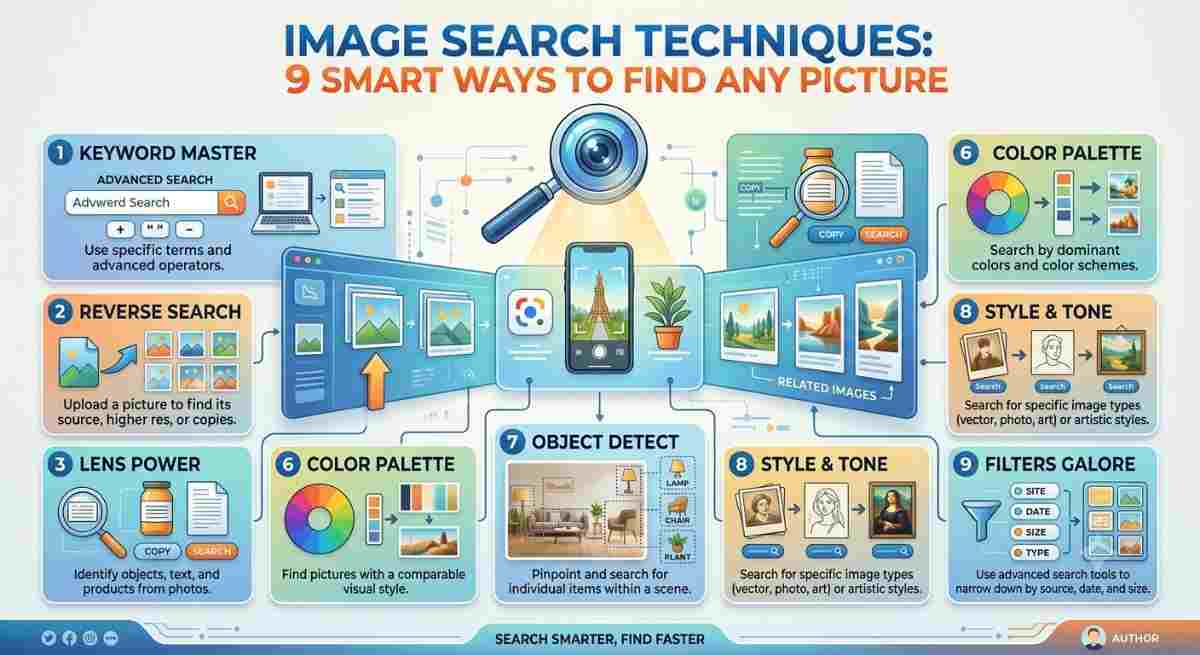
Ever see a picture and wonder where it came from? Or found a product you love but had no clue what it was called? Now you don't have to guess at keywords. By using the right image search techniques, you can trace a photograph to its source, identify objects, and even spot fake images in seconds.
In this guide, you’ll learn what image search is, how to do it most effectively, the best tools to use, and a few pro tips most people never use.
What is image searching?
Image search is a method of finding information on the internet using images. You can either type in descriptive words to find images, or you can use an image itself as your search query.
The second method is known as reverse image search. Instead of typing “red leather rucksack” you upload a photo of the rucksack and the search engine shows where it appears online, similar items, and often where to buy it.
What is Image Searching?
Search engines do not see images like humans do. They turn a picture into data: shapes, colours, textures, patterns. This data is then compared to billions of indexed images. Then they sort the best matches and show them to you.
A search can still work if a photo has been cropped, resized or colour-filtered, which is why. The system matches the general visual pattern, not the exact pixels.
9 Best Ways to Search for Images
1. Pick Descriptive Keywords
This is still a powerful technique, when used well. Vague searches return vague results.weak: table
• Better: wooden minimalist standing desk with monitor
Add details such as colour, style, material, setting or time period.
2. Reverse Image Search on PC
On a computer, go to Google Images. Click the camera icon to upload a picture or paste an image URL. You can even right-click on any image in Chrome and choose to search with Google Lens.
3. Use Google Lens on Your Mobile
Google Lens lets you point your camera at an object, plant, landmark or text and get results instantly. Great for finding products, translating signs or figuring out “what is this?”
4. Search on Different Engines
No single tool indexes the whole web. If one does poorly, try another:
• Google Images / Lens: best all-around
• TinEye – helpful to find original source and older versions
• Bing Visual Search: good for shopping and related products.
• Yandex Images – surprisingly good at matching faces, places and obscure photos
• Pinterest Lens: great for design, fashion and home ideas
5. Focus on What Matters
Your photo could make search engines misunderstand the context. Focus on the most recognizable object in your photo such as a logo or a monument, and crop the image accordingly. This is one of the best underappreciated techniques when it comes to performing high-quality image searches.
6. Use Both Pictures and Words
Many tools can now perform searches that involve images and words. For example, if you upload a picture of a t-shirt, you can also mention any other parameters, such as “blue” or “under $30.”
7. Leverage Filters
Using filters can be very beneficial in terms of time-saving. First, go to Tools and Settings on Google Images to filter images according to:
• Image Size (for printing, select big-sized images).
• Image Color (black white or colored).
• Image Type (photo, line drawing, clip art, GIF).
• Timing (access only the images that were uploaded recently).
• Usage Rights (Creative Commons, for commercial use).
8. Verify Image Sources and Date
When you want to verify an image, check its first appearance. If a particular image was uploaded a long time ago but is being used as “news,” it means that the image is being misused. TinEye can give you search results with the oldest images first.
9. Search for Your Own Images
If you are a content creator or a website owner, you can search your images online to discover websites that have used your photos without permission.
Current Situations for the Use of Image Search
• Shopping: Identify a product if you don't know the name of it and then make price comparisons.
• Fact verification: Confirm authenticity of an image for example by journalists, students, and lay people.
• Searching for the original creator: Revert a meme or a particular graphic to its original author.
• Identification: Identify various plants, animals, monuments, etc.
• Protecting your work: Photographers and designers can find duplicates of their works.
• Searching Design inspiration:Identify similar patterns and colors, as well as layouts.
Common Mistakes to Avoid
• Using poor quality images. Unclear or small images give bad results. Make sure to use the highest possible resolution.
• Relying on just one tool. If Google does not return the results check out TinEye or Yandex.
• Forgetting the context. A match does not automatically mean that an image is original. Look for dates and sources.
• Thinking that it is free. Just because you found an image, it does not mean that you can use it. Make sure that the image got a license for usage.
Tips to Get More Effective Results
1. Use the original file instead of a screenshot of something else.
2. Remove watermarks and borders if possible before searching.
3. Make sure to search several versions of the same image (whole image and cropped).
4. Use additional keywords to provide context about the image, such as location or brand name.
5. Check the "visually similar" tab as well as the exact match.
In the Future of Image Search
The method of image searching is evolving at a great pace. The use of various media such as camera, voice commands and basic text for accurate image searching is fairly common now and it has become capable of recognizing contextual communication along with the appearance analysis. Thus, acquiring this knowledge now can give you an advantage in applying visual search functions on the internet in the future.
Frequently Asked Questions
- What are the principal techniques of image search? They include search by keywords, reverse image search and camera image search (like Google Lens).
- Is reverse image search free? Yes. Google Images, Google Lens, TinEye (basic access), Bing Visual Search and Yandex are free.
- Can I use reverse image search on my mobile phone? Yes. You can use Google or Google Lens or you can long-press on any image in Chrome. You also have the option of uploading a picture from your gallery.
- How can I find the original source of an image? You can check the image with Google and TinEye and you will have to check for the earliest image.
- Why can’t I have any results for my image? The image is too new and of too low quality to be indexed. You can try to crop the image, to make it clearer and using another search tool.
- Can image search identify fake pictures? It cannot prove that the picture has been manipulated on its own.
Conclusion
Image search is now more than just a novelty. It is a valuable tool when it comes to shopping, researching, verifying claims and protecting one’s work. Begin with basic keyword search, proceed to reverse image search and make use of different filters, crop and combined methods to get the most of it. Test these techniques on your latest photo and see how much quicker you can find what you are looking for.